Configuring Controller & Keyboard
Overview
This section will go through how to configure controls in mGBA for keyboard and gamepads/controllers.
This will allow you to personalize how you play games in mGBA,
from editing the keybinds to creating shortcuts for easier inputs.
Editing keybinds
mGBA is compatible with input via either of the following:
Using the keybind editor
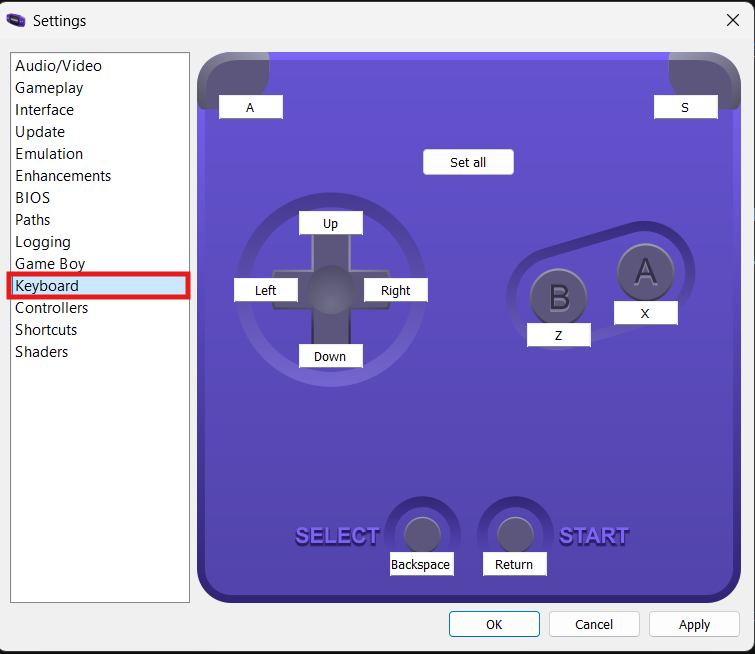
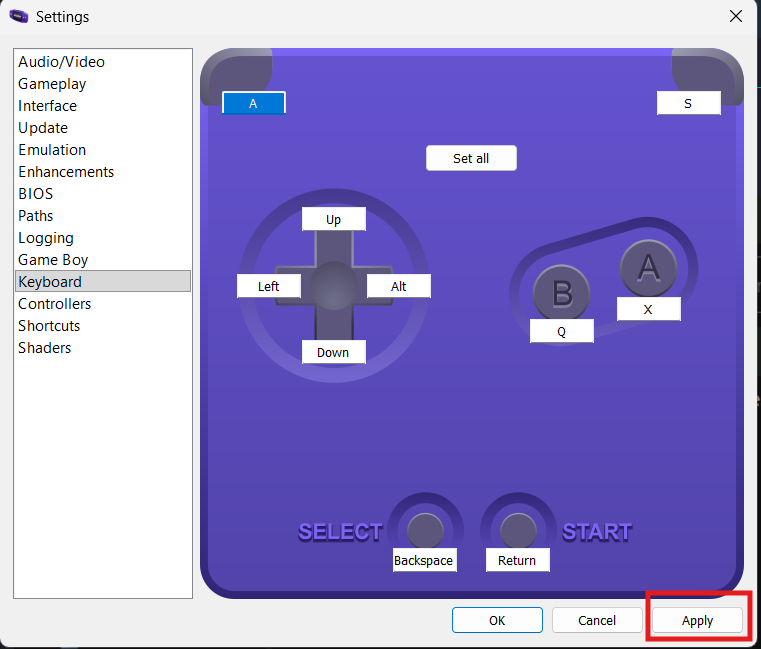
For both keyboard and controller, a Game Boy Advance gamepad is displayed with text boxes above each button. These each hold the current keyboard key, or "---" to indicate a lack of one.
Binding the keyboard
The quickest way to get started with playing games would be to use keyboard controls.
One can use the defaults, or easily rebind them from the settings.
What are the default keybinds?
| Game Boy Button | Default Key |
|---|---|
| Up | ↑ Up |
| Right | → Right |
| Down | ↓ Down |
| Left | ← Left |
| A | x |
| B | z |
| Select | ← Backspace |
| Start | Return |
| L (left shoulder) | a |
| R (right shoulder) | s |
-
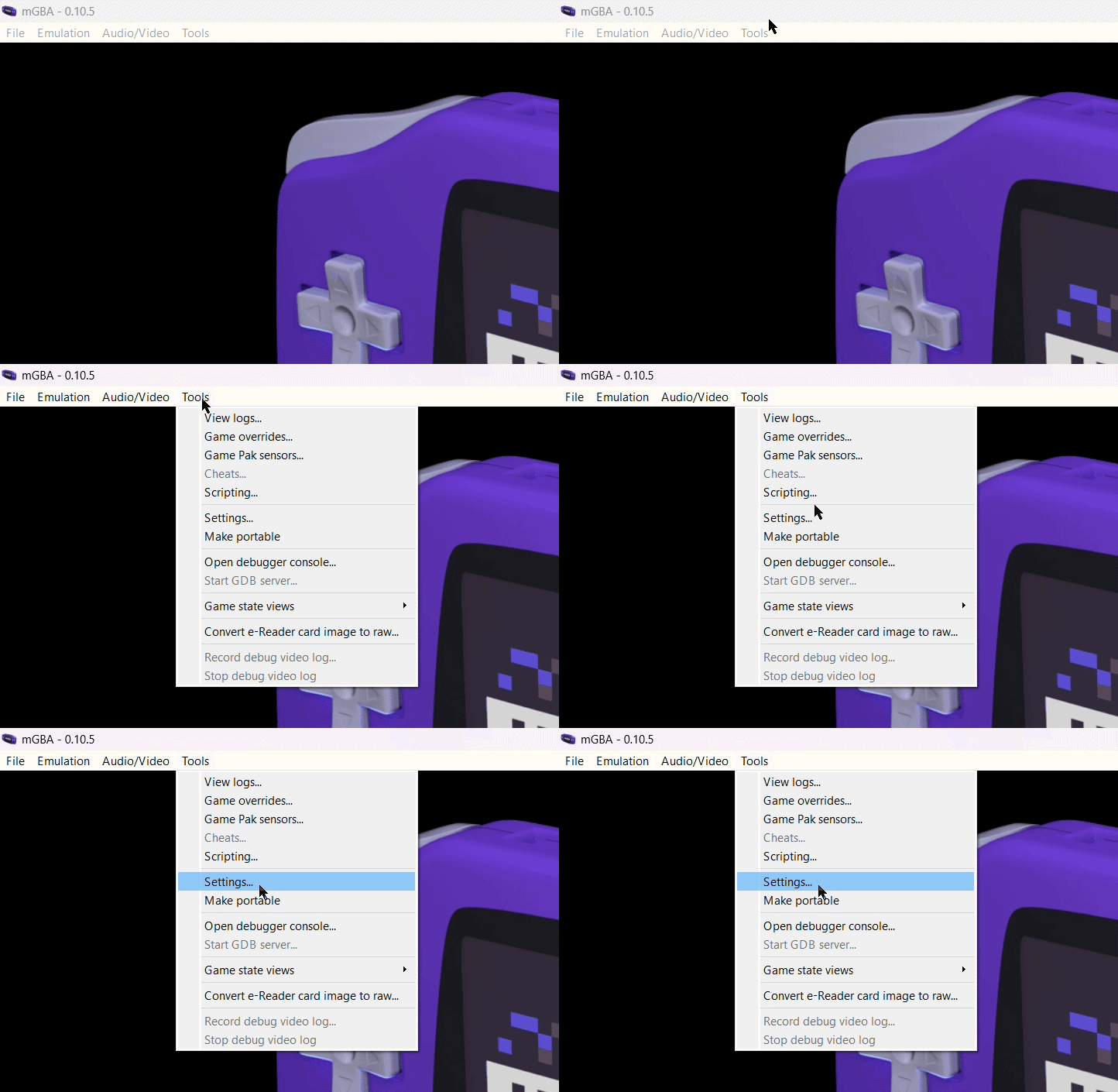
Navigate to the Keyboard tab in mGBA's settings.
Tools > Settings > Keyboard
-
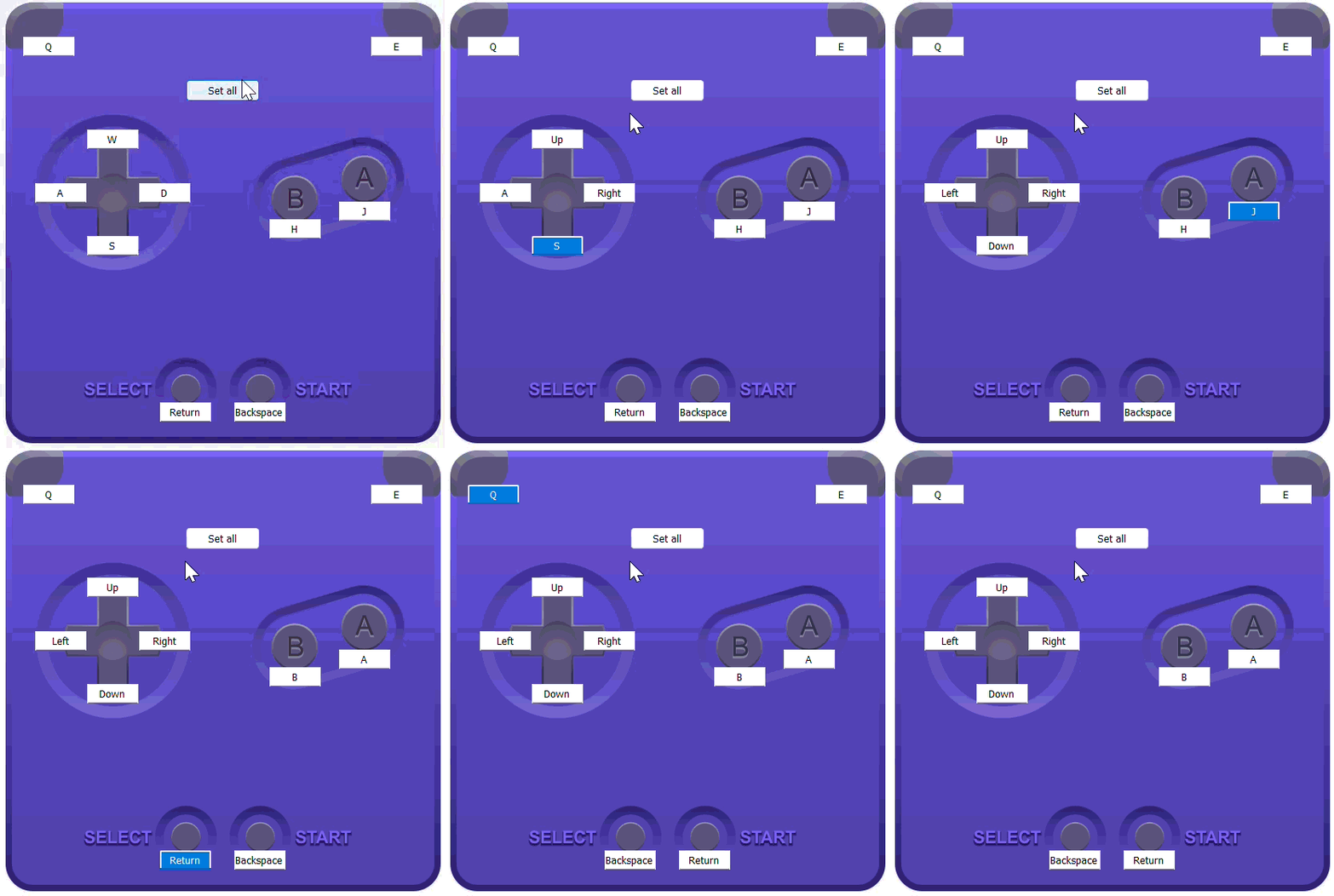
Click on the button that you want to bind.
To edit the controls for a specific key, click on the text box with the old keybind. This should highlight the text and prime it for rebinding.
Setting multiple in a row
If you click "Set all", mGBA will run through all the buttons in the following sequence:
Up > Right > Down > Left > A > B > Select > Start > L (left shoulder) > R (right shoulder)
-
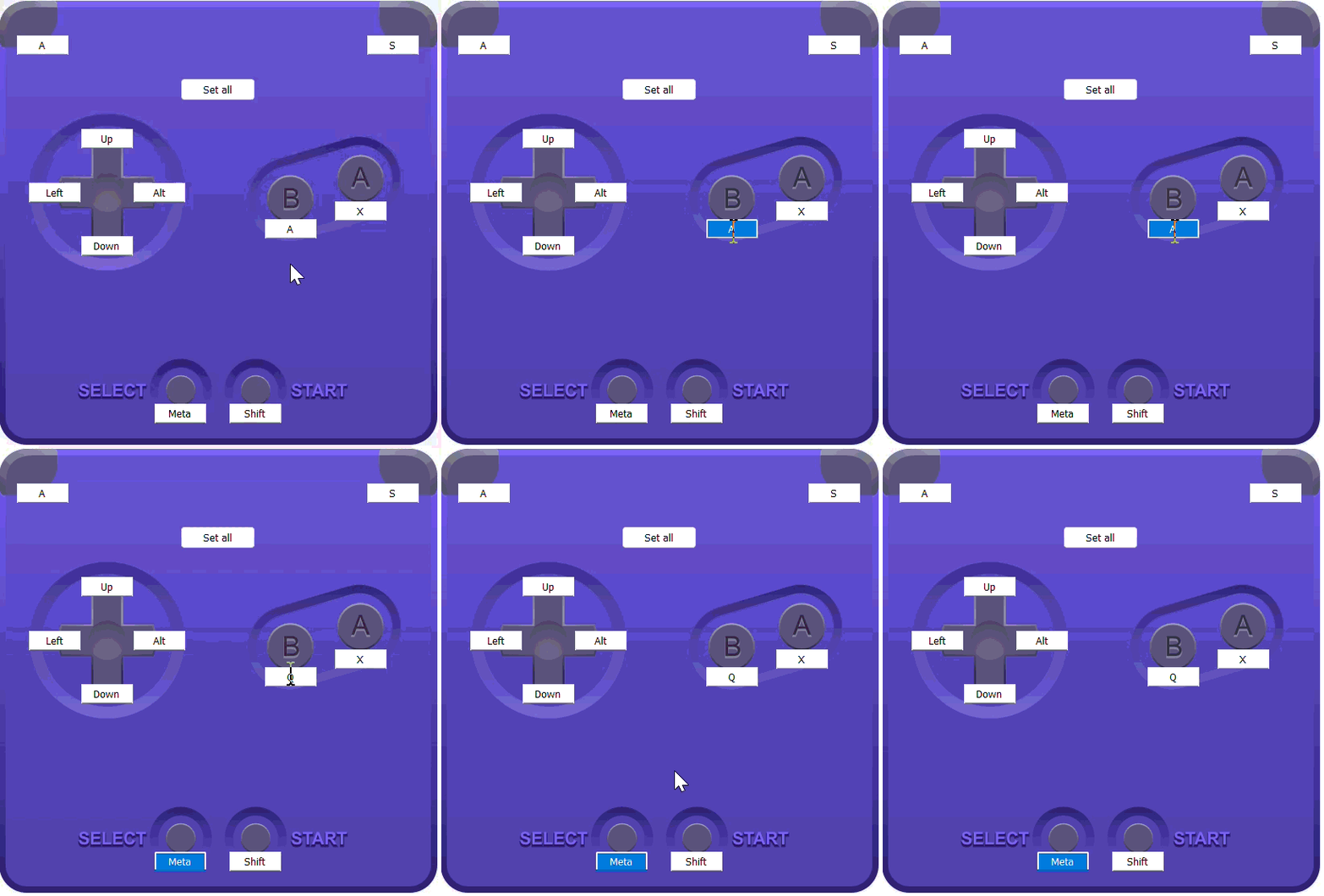
Enter the keyboard key that you want to bind it to.
The higlighted textbox indicates the currently selected button.
-
Click "Apply".
This will save the setting and return you to the home screen.
Binding a gamepad/controller
Some users may find game controllers more comfortable and easier to use. mGBA can detect most modern controllers via a USB or wireless (such as Bluetooth) connection.
-
Connect your controller to the computer.
mGBA will automatically detect any controllers that are connected to the system, usually via Bluetooth or a USB cable.
How do I connect a Bluetooth controller?
Different systems and controllers vary in how to get started. Generally, the process follows this pattern:
- Navigate to Bluetooth in the system settings.
- Activate Bluetooth and devices search.
- Activate your controller's pairing mode.
- Choose your controller's name in the settings.
For example, connecting an Xbox controller to PC.
-
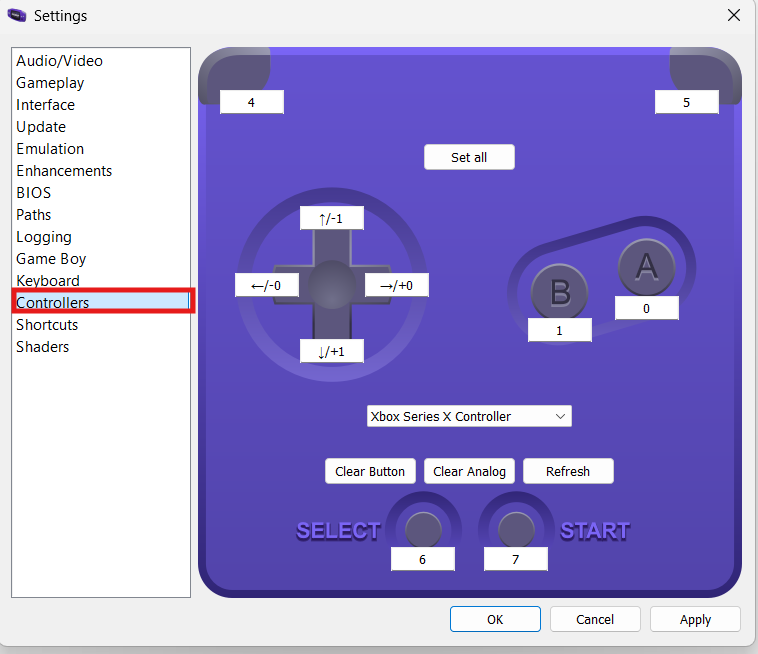
Navigate to the Controllers tab in mGBA's settings.
Tools > Settings > Controllers
-
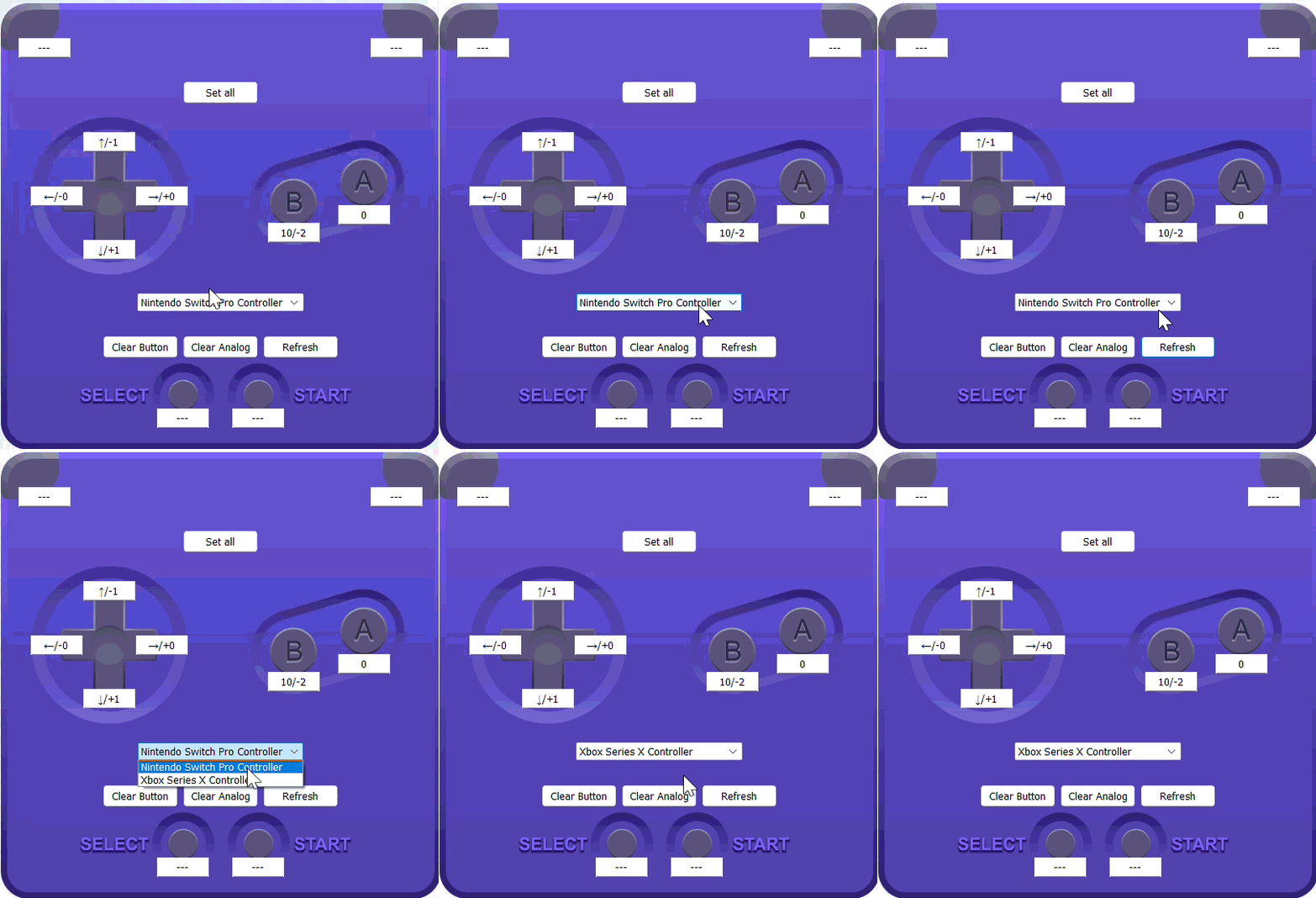
Choose the desired controller from the dropdown.
From the dropdown in the centre, choose the correct controller if you have multiple connected. You may need to click Refresh if it does not appear right away.
-
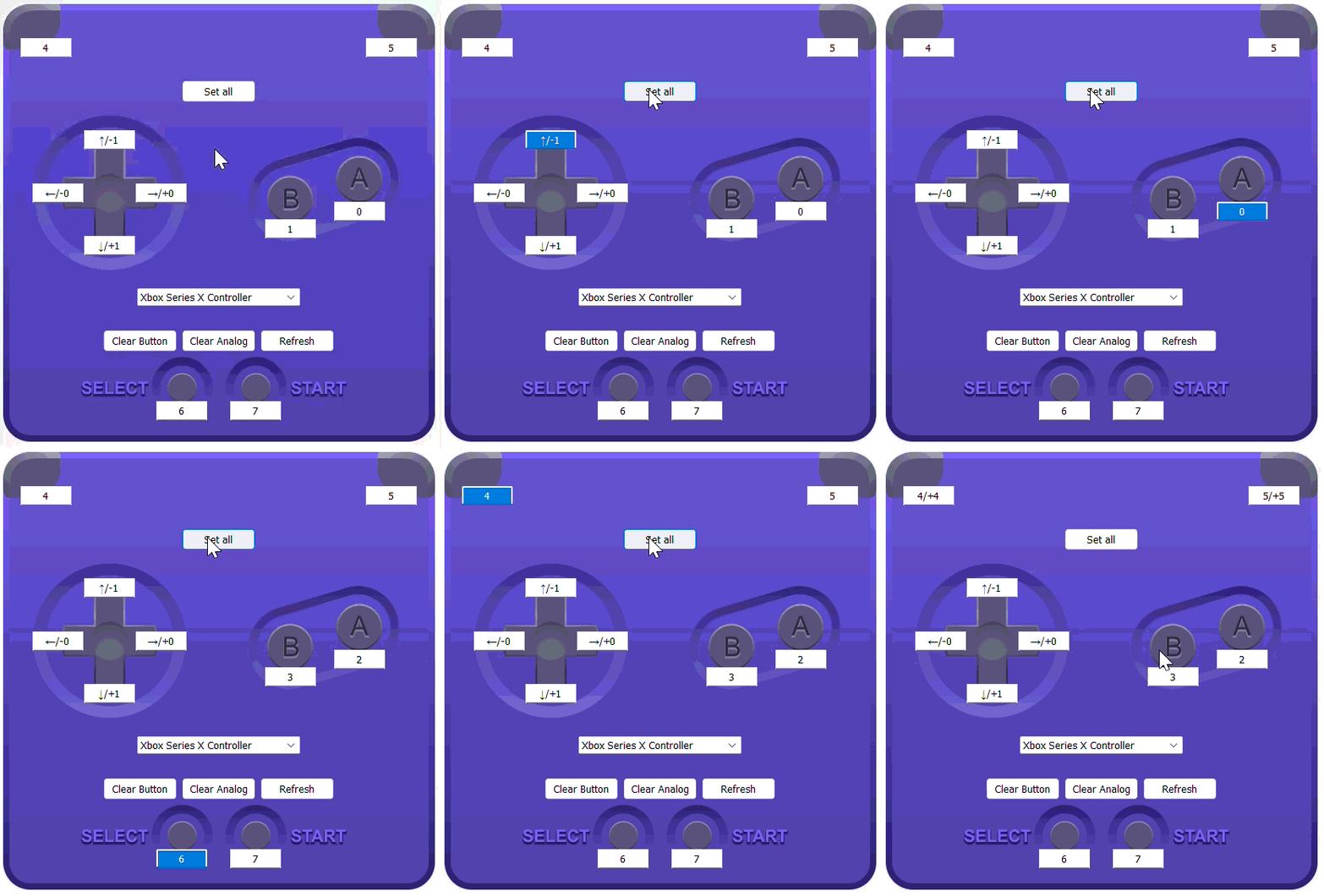
Click on the button that you want to bind.
To edit the controls for a specific key, click on the text box with the old keybind using your mouse. This should highlight the text and prime it for rebinding.
Setting multiple in a row
If you click "Set all", mGBA will run through all the buttons in the following sequence:
Up > Right > Down > Left > A > B > Select > Start > L (left shoulder) > R (right shoulder)
-
Enter the desired button or motion on the controller.
The higlighted textbox indicates the currently selected Game Boy button.
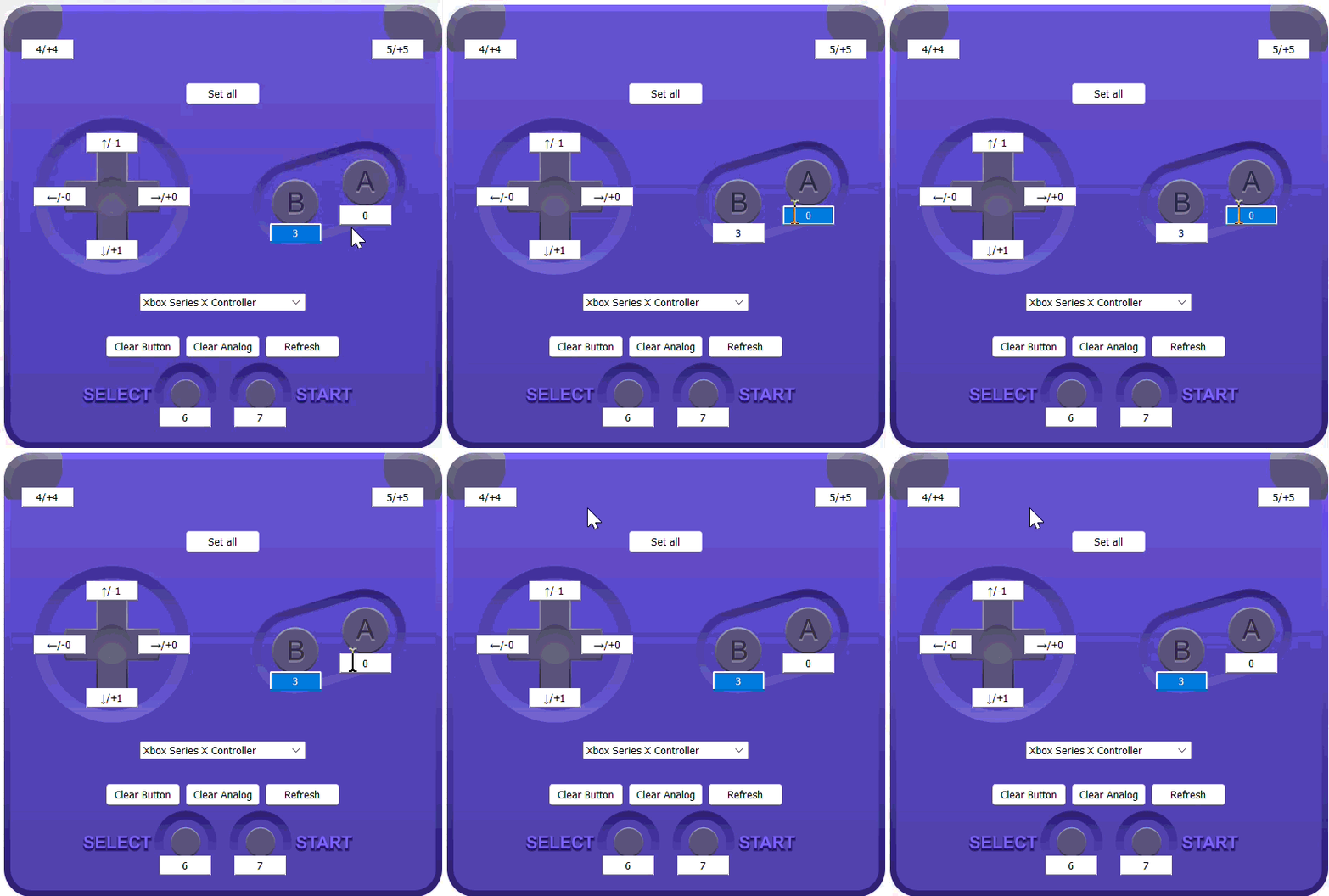
What are these numbers?
Unlike in the keyboard settings, the keybinds are written as numeric codes that correspond to each button on the controller.
Additionally, the joysticks and trigger buttons on many controllers are considered "analog inputs". These are represented by a
+or-sign before the numeric code and are combined with regular keybinds (separated by a slash/).Look at the following for the codes of common controllers.
Xbox Series X Controller
With an Xbox Series X Controller:
Button Key Code A 0 B 1 X 2 Y 3 LB (left shoulder) 4 RB (right shoulder) 5 LT (left trigger) /+4 RT (right trigger) /+5 Select 6 Start 7 Left stick 8 Left stick 9 Home (Xbox) 10 Upload 11 Up (d-pad) ↑ Right (d-pad) → Down (d-pad) ↓ Left (d-pad) ← Up (left stick) /-1 Right (left stick) /+0 Down (left stick) /+1 Left (left stick) /-0 Up (right stick) /-3 Right (right stick) /+2 Down (right stick) /+3 Left (right stick) /-2 Nintendo Switch Pro Controller
With a Nintendo Switch Pro Controller:
Button Key Code A 0 B 1 X 2 Y 3 Select 4 Home 5 Start 6 Left stick 7 Left stick 8 L (left shoulder) 9 R (right shoulder) 10 ZL (left trigger) /+4 ZR (right trigger) /+5 Up (d-pad) 11 Right (d-pad) 14 Down (d-pad) 12 Left (d-pad) 13 Up (left stick) /-1 Right (left stick) /+0 Down (left stick) /+1 Left (left stick) /-0 Up (right stick) /-3 Right (right stick) /+2 Down (right stick) /+3 Left (right stick) /-2 -
Click "Apply".
This will save the setting and return you to the home screen.
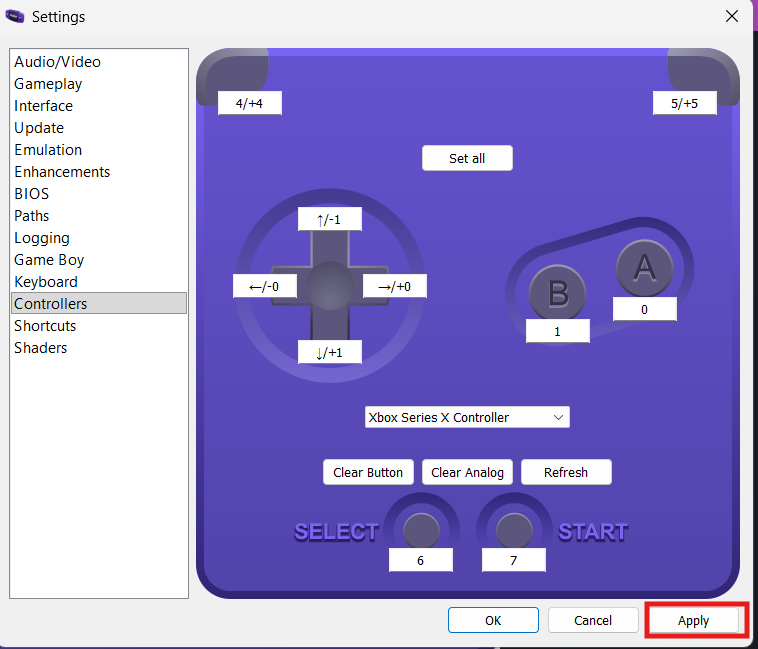
Success
The new keybinds should now be applied when playing a game.
Defining shortcuts
Shortcuts allow us to interact with mGBA much more conveniently, especially when playing on controller.
We can set actions like saving the game to a specific button, so we do not have find the option in the actual menu bar.
This section will outline how to set a shortcut by mapping the "Save State" action to the home button on a controller.
What is a save state?
Save states are snapshots of the exact condition of a game at any moment in time.
This differs from regular "save data" which is often keeps only information about overall game progress or settings.
Save states are usually handled by the emulator, not the game itself. This is useful for recovering from corrupted save data or repeating sections in games that do not offer regular saving.
-
Navigate to the Shortcuts tab in mGBA's settings.
Tools > Settings > Shortcuts
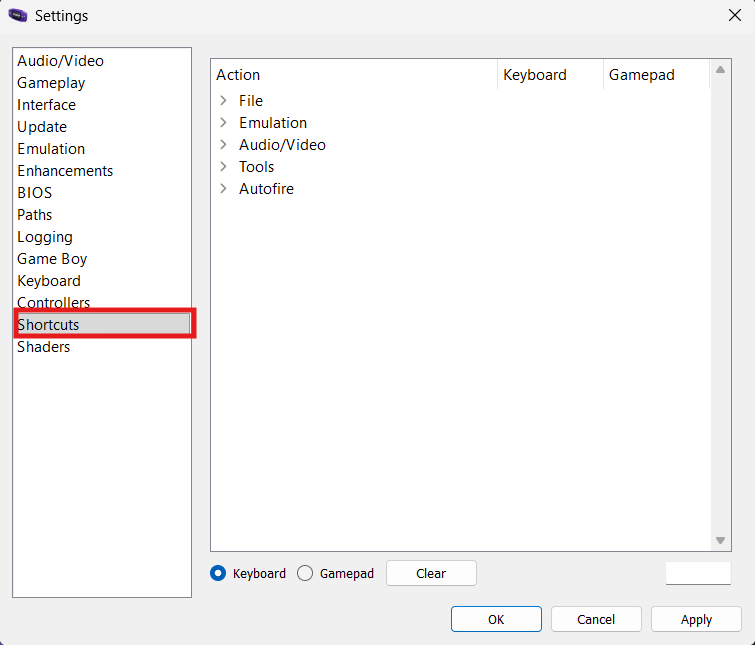
-
Navigate to the Save state action.
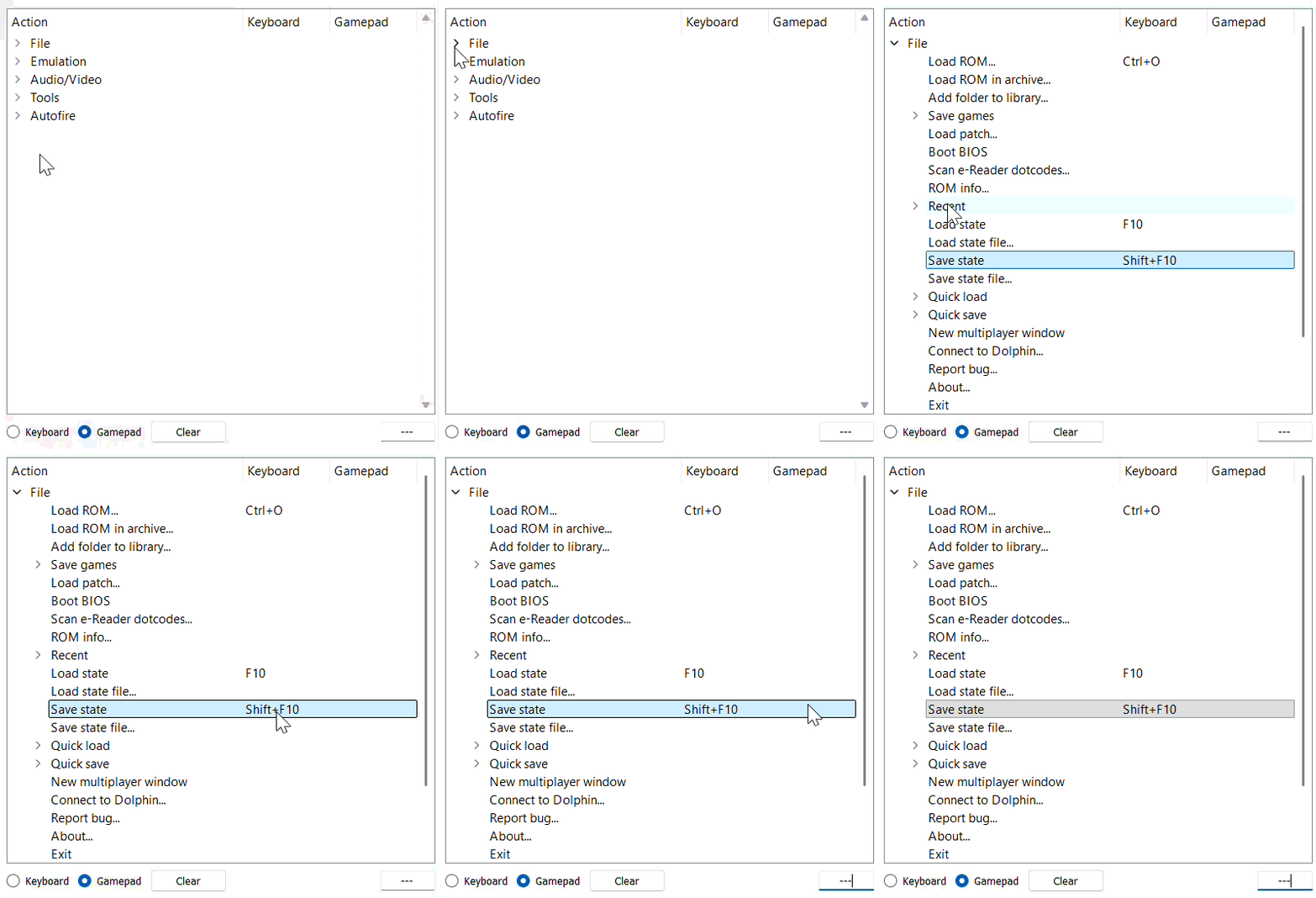
Check!
Make sure your controller is connected to the computer and detected by mGBA.
See Binding a gamepad/controller for more information.
-
Activate binding mode.
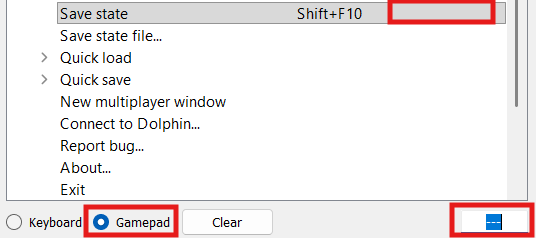
Double-click the space in the Gamepad column and Save state row.
This should prime it for binding, indicated by the:
- the bottom-right text box being highlighted and
- the bottom-left option switching to "Gamepad".
-
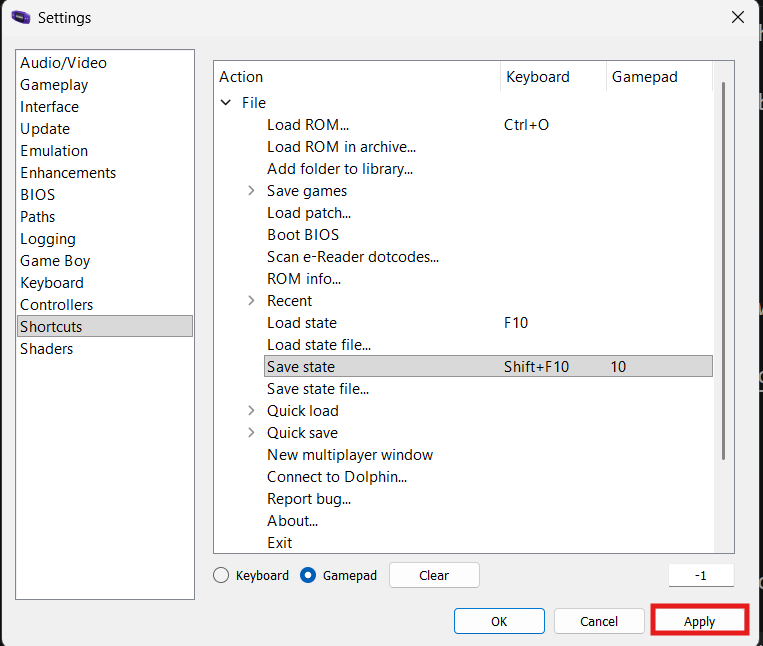
Enter the button that you want to bind the action to.
In our case, we will press the Xbox Home button, which corresponds to the code
10 -
Set the binding to Save State.
Again, double-click the space in the Gamepad column and Save state row.

-
Click "Apply".
This will save the setting and return you to the home screen.
Success
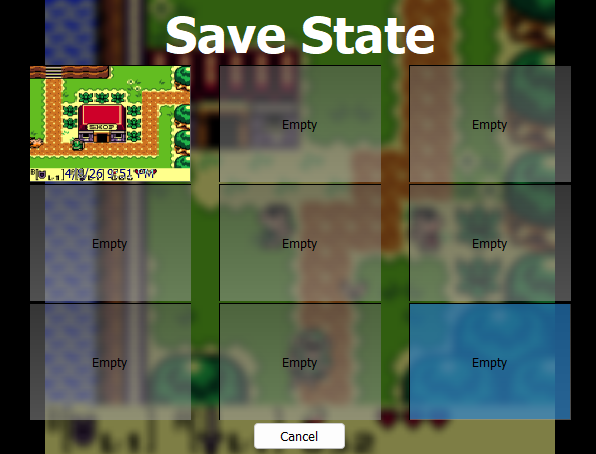
The shortcut should be activated when the button is pressed in a game.
Conclusion
By finishing this section, you should know how to do the following:
- Edit the controls for keyboards.
- Connect a wireless/wired controller.
- Edit the controls for controllers.
- Define shortcuts for mGBA actions.
Nice job  , you now know how to set up keyboards and controllers!
Go to the next section to learn about configuring audio and video settings.